
Model Management
This guide shows you how to add, customize, and delete models within Jan.
Local Model
Local models are managed through Llama.cpp (opens in a new tab), and these models are in a format called GGUF. When you run them locally, they will use your computer's memory (RAM) and processing power, so please make sure that you download models that match the hardware specifications for your operating system:
Adding Models
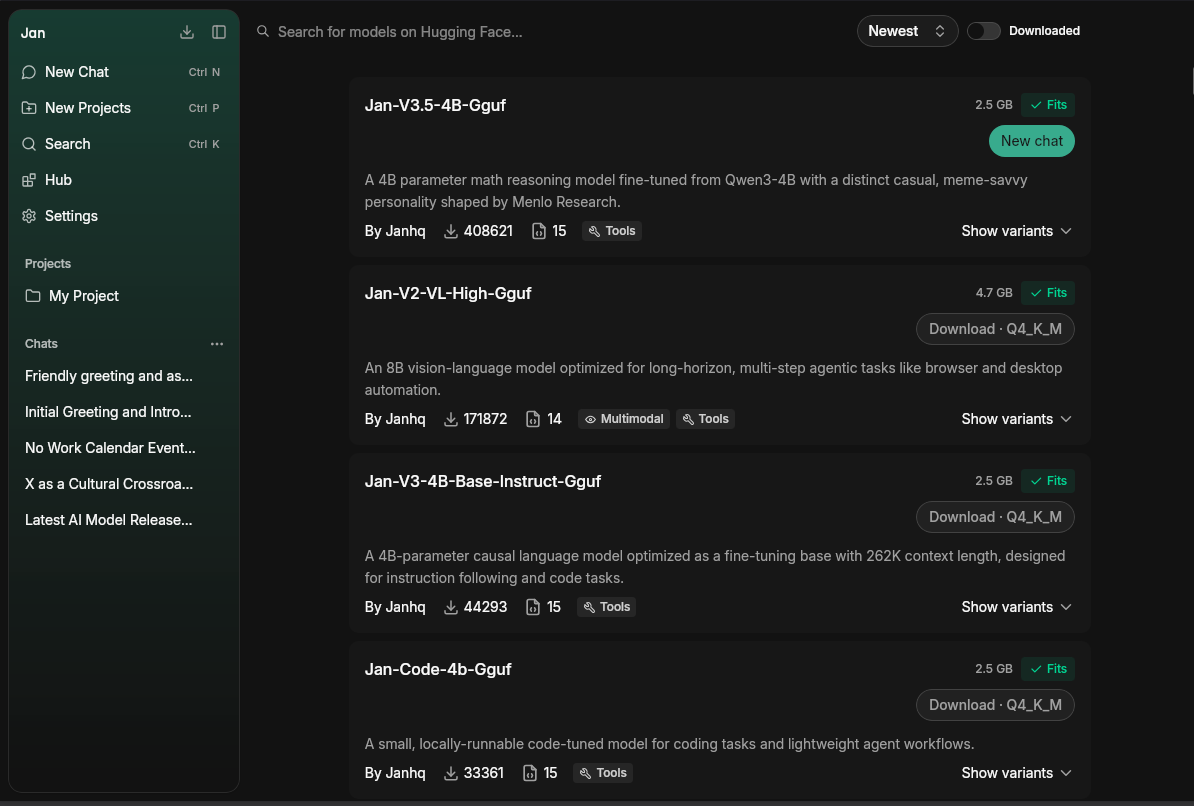
1. Download from Jan Hub (Recommended)
The easiest way to get started is using Jan's built-in model hub (which is connected to HuggingFace's Model Hub (opens in a new tab):
- Go to the Hub tab
- Browse available models and click on any model to see details about it
- Choose a model that fits your needs & hardware specifications
- Click Download on your chosen model
Each model shows a colored fit pill — Fits, May be slow, or Won't fit — based on your hardware. Quantization tiers are grouped as Small, Balanced, or Large, with a Recommended tag on the default download. No data is downloaded to determine fit status.
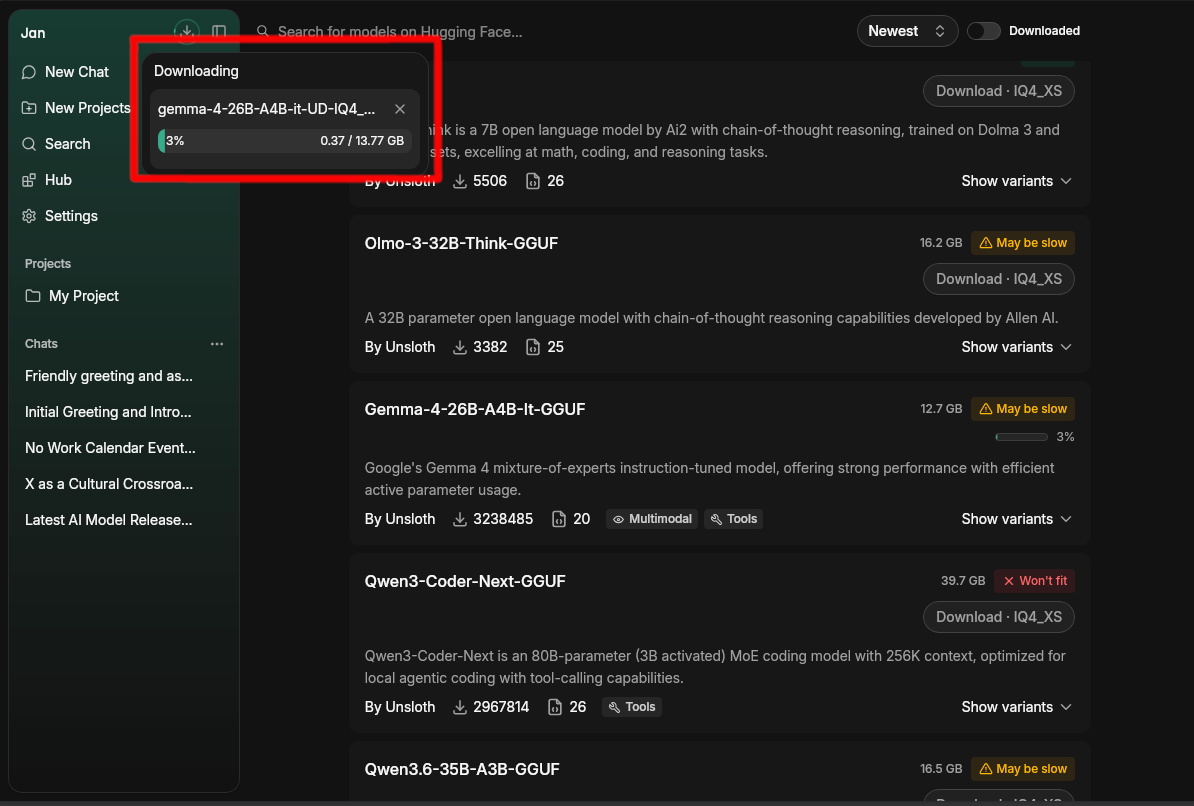
Once you click Download, you can track the progress from the download indicator in the top bar. The model name and download percentage are shown in real time — you can cancel at any time by clicking the × button. If a download fails, it is cleared from the queue and a toast is shown. To retry, click Download again from the Hub or provider list.
2. Import from Hugging Face (opens in a new tab)
You can download models with a direct link from Hugging Face:
Note: Some models require a Hugging Face Access Token. Enter your token in Settings > General > Others > HuggingFace Token before importing.
- Visit the Hugging Face Models (opens in a new tab) page.
- Find the model you want to use, make sure it is a GGUF file that fits in your computer.
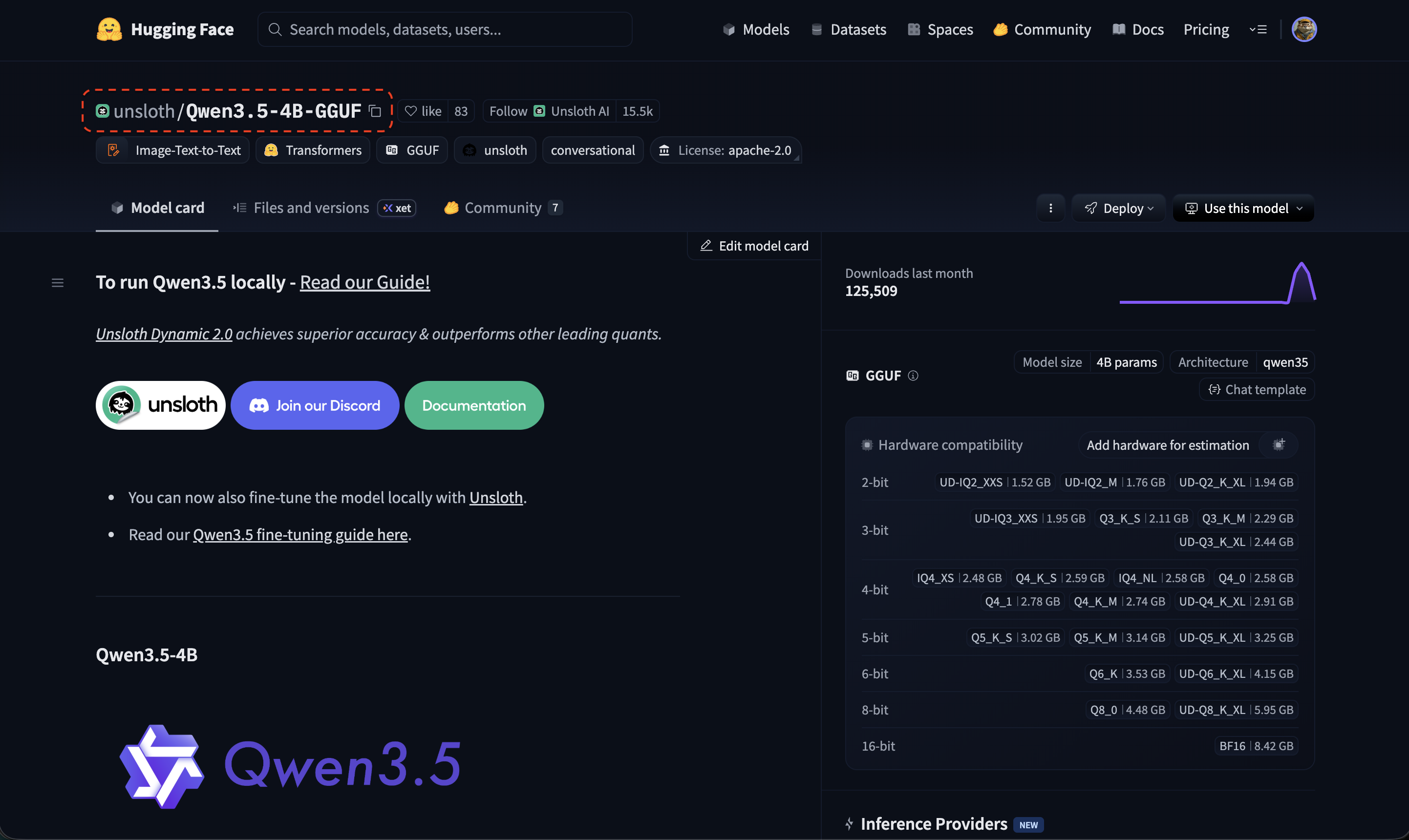
- Copy the model ID (e.g., TheBloke/Mistral-7B-v0.1-GGUF)
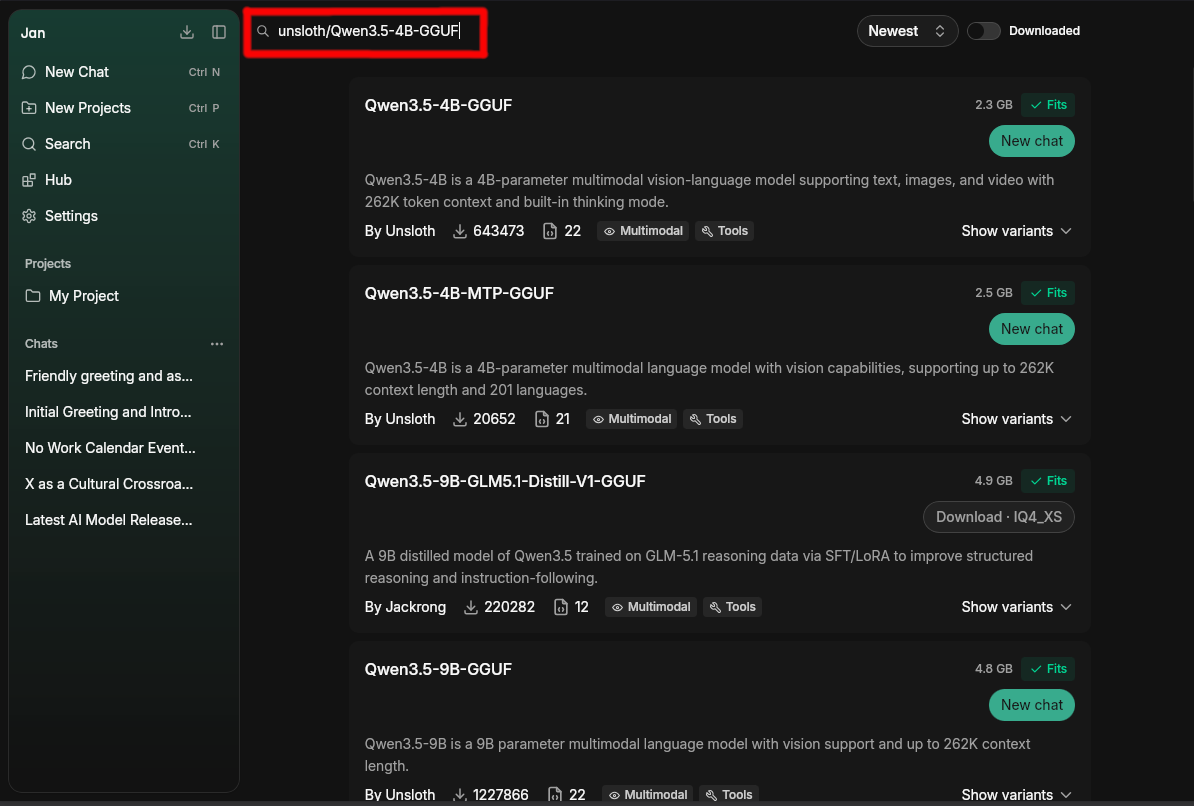
- In Jan, paste the model ID to the Search bar in Hub page
- Select your preferred quantized version to download (if the option is available)
Copy the model ID.
Paste it in Jan's Hub Search Bar.
3. Use This Model on Hugging Face
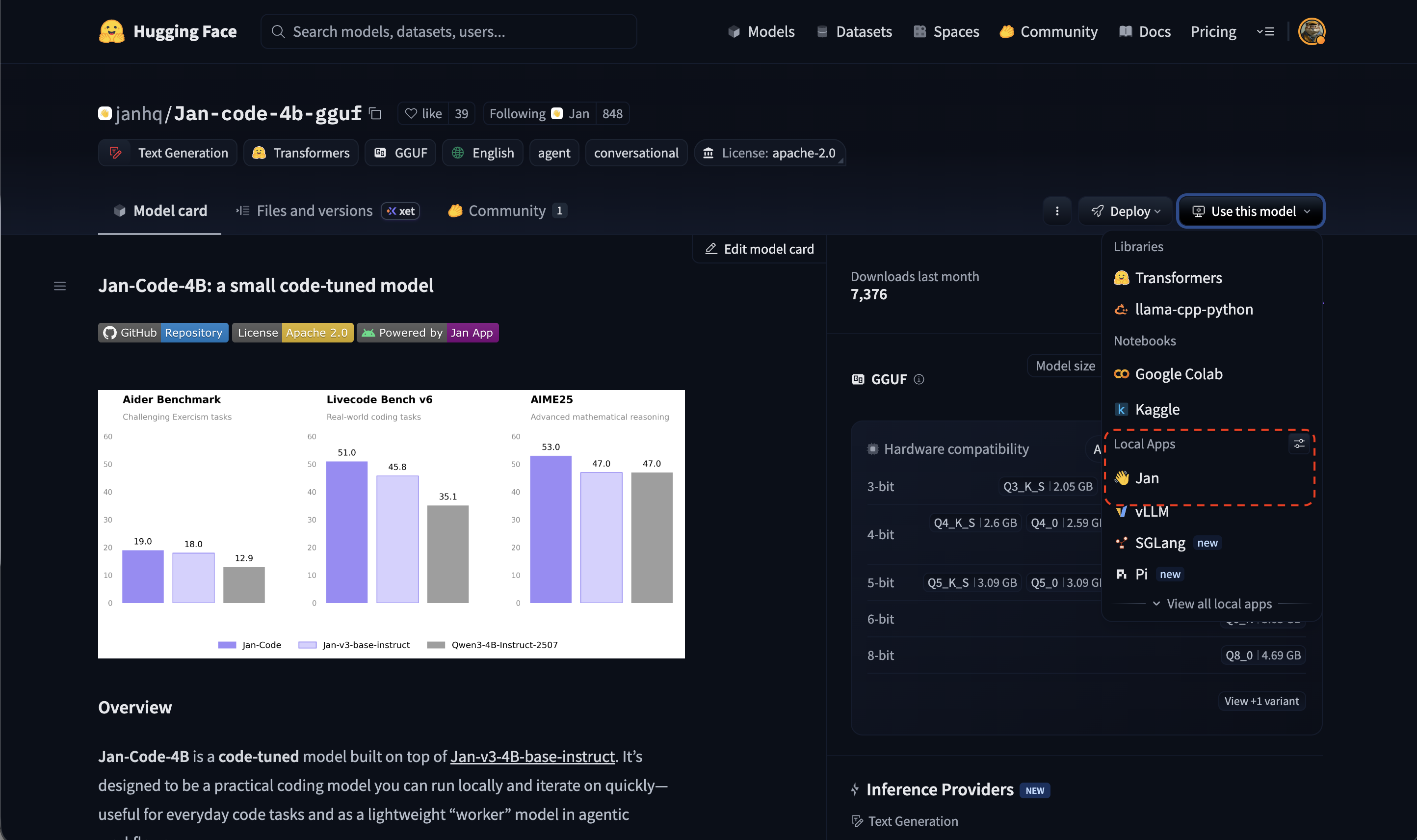
You can also open any model directly in Jan from the Hugging Face model page:
- On any model page, click Use this model
- Under Local Apps, select Jan
Bulk Delete Downloaded Models
To free disk space quickly, open Settings > Llama.cpp (or MLX) and click Delete All in the Models section. Jan shows the total space to be freed and removes every managed download at once. Models you imported yourself are left untouched.
4. Import Local Files
If you already have model files on your computer, you can import them directly via the engine settings:
Import GGUF model files for local inference on CPU or GPU.
Import MLX-Swift models for Apple Silicon.
Cloud Models
Jan supports connecting to various AI cloud providers. Go to Settings > Model Providers, select your provider, and enter your API key.