
Local AI Engine (llama.cpp)
What is llama.cpp?
llama.cpp is the engine that runs AI models locally on your computer. Think of it as the software that takes an AI model file and makes it actually work on your hardware - whether that's your CPU, graphics card, or Apple's M-series chips.
Originally created by Georgi Gerganov and now maintained by the ggml-org/llama.cpp (opens in a new tab) community, llama.cpp is designed to run large language models efficiently on consumer hardware without requiring specialized AI accelerators or cloud connections.
Why This Matters
Privacy: Your conversations never leave your computer Cost: No monthly subscription fees or API costs Speed: No internet required once models are downloaded Control: Choose exactly which models to run and how they behave
Accessing Engine Settings
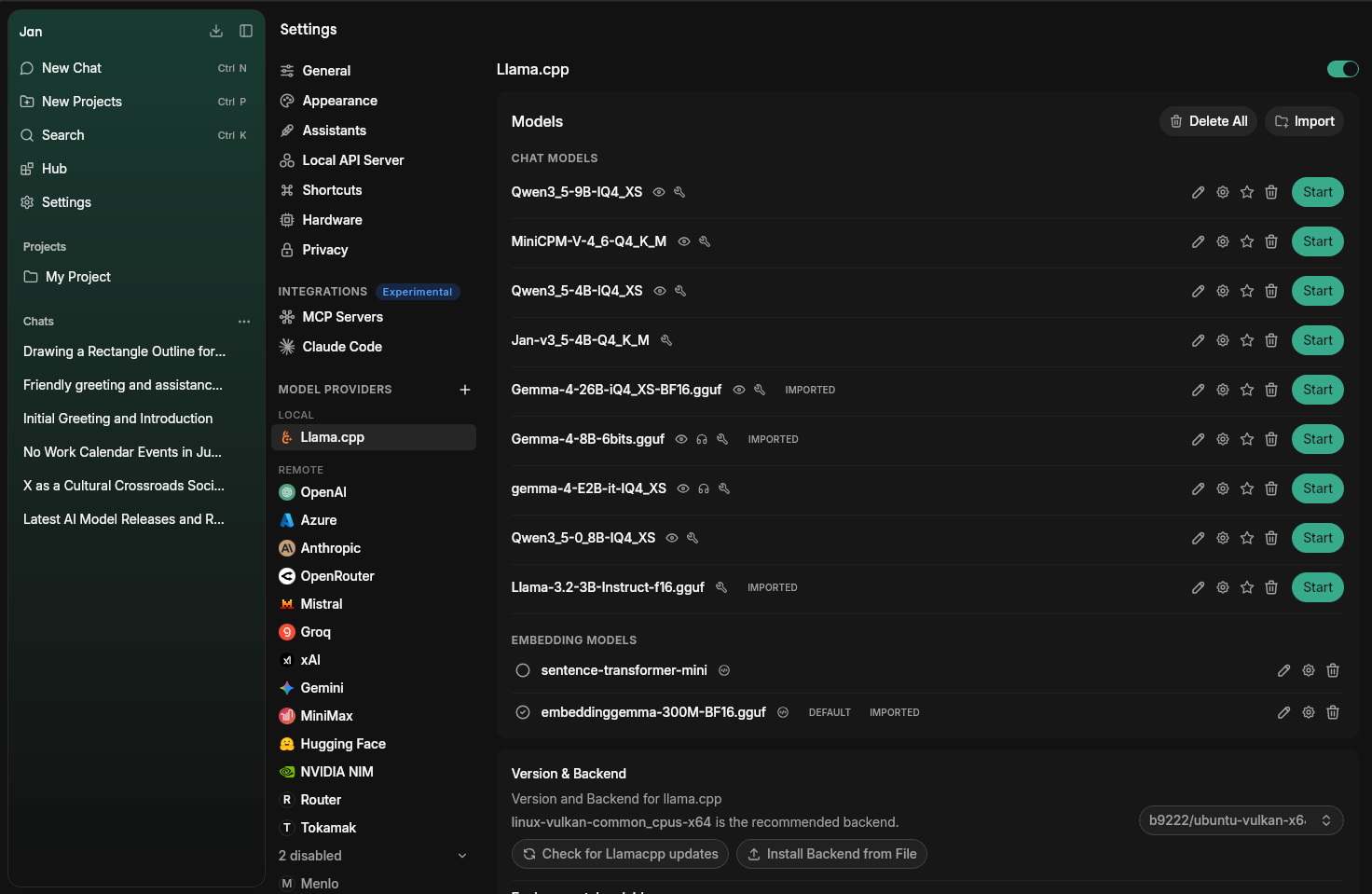
Find llama.cpp settings at Settings () > Llama.cpp under Model Providers:
Model Management
The Models section at the top of the Llama.cpp settings page lets you manage all your local GGUF models.
Download from Hub
Browse and download models directly from the Hub tab in the left sidebar. Downloaded models will appear here automatically.
Import Local Files
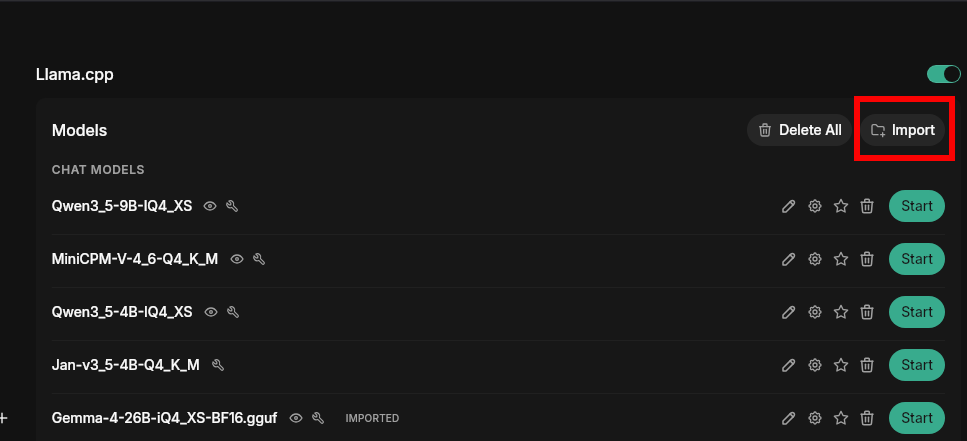
Click Import to link a GGUF model file already on your computer. This is useful for models downloaded via your browser from Hugging Face, or models shared with other apps — Jan links to the file in place without copying it.
Delete a Model
Click the trash icon next to any model to remove it. This deletes the model file from Jan's data folder (linked files leave the original intact).
These are advanced settings. You typically only need to adjust them if models aren't working properly or you want to optimize performance for your specific hardware.
Engine Management
| Feature | What It Does | When You Need It |
|---|---|---|
| Engine Version | Shows which version of llama.cpp you're running | Check compatibility with newer models |
| Check Updates | Downloads newer engine versions | When new models require updated engine |
| Backend Selection | Choose the version optimized for your hardware | After installing new graphics cards or when performance is poor |
| Auto Update Engine | Automatically updates llama.cpp to latest version | Enable for automatic compatibility with new models |
| Max Concurrent Models | Maximum models the router keeps loaded at once | Set to 1 if you want strict single-model operation; 0 means unlimited |
Jan v0.8.0 switched llama.cpp from launching a separate server for each model to a single router process (llama-server --models-preset <router.preset.ini> --models-max <N> --no-webui) that loads and unloads models on demand via the upstream POST /models/load and POST /models/unload endpoints. You no longer need to manually start or stop individual models — the router handles scheduling automatically. After installing a backend, Jan checks for required system libraries (CUDA, Vulkan, cuDNN) and shows you what to install if anything is missing.
Hardware Backends
Jan offers different backend versions optimized for your specific hardware. Think of these as different "drivers" - each one is tuned for particular processors or graphics cards.
Using the wrong backend can make models run slowly or fail to load. Pick the one that matches your hardware.
NVIDIA Graphics Cards (CUDA)
Choose based on your CUDA version (check NVIDIA Control Panel):
CUDA 12.0 (recommended):
win-avx2-cuda-cu12.0-x64(most common)win-avx512-cuda-cu12.0-x64(newer Intel/AMD CPUs)win-avx-cuda-cu12.0-x64(older CPUs)win-cuda-12-common_cpus-x64(broadest CPU compatibility)
CUDA 11.7:
win-avx2-cuda-cu11.7-x64(most common)win-avx512-cuda-cu11.7-x64(newer Intel/AMD CPUs)win-avx-cuda-cu11.7-x64(older CPUs)win-cuda-11-common_cpus-x64(broadest CPU compatibility)
CUDA 13:
win-cuda-13-common_cpus-x64
CPU Only
win-avx2-x64(most modern CPUs, recommended)win-avx512-x64(newer Intel/AMD CPUs with AVX-512)win-avx-x64(older CPUs)win-noavx-x64(very old CPUs)win-common_cpus-x64(broadest compatibility)
Other Graphics Cards (Vulkan — AMD, Intel Arc)
win-vulkan-x64(recommended for GPU acceleration)win-vulkan-common_cpus-x64(Vulkan with broader CPU support)
Quick Test: Start with win-avx2-cuda-cu12.0-x64 for NVIDIA, win-vulkan-x64 for AMD/Intel Arc, or win-avx2-x64 for CPU-only.
Performance Settings (Engine-wide)
These engine-wide settings are applied to every model the router loads. Per-model overrides (Context Size, GPU Layers, Batch Size, Disable KV Offload, etc.) live on the model's own settings page.
| Setting | What It Does | Default | Impact |
|---|---|---|---|
| Continuous Batching | Process multiple requests at once | Disabled | Enable for faster multi-tool or multi-conversation workloads |
| Parallel Sequences | Number of parallel sequences to decode | 1 | 1 enables -kvu single-request optimization; raise for concurrent serving |
| Threads | Number of threads to use during generation | -1 (auto) | -1 uses all logical cores |
| Threads (Batch) | Threads for batch and prompt processing | -1 (same as Threads) | Tune separately for prompt-heavy workloads |
| uBatch Size | Physical maximum batch size | 512 | Controls memory usage during batching |
| Devices for Offload | Comma-separated device list (e.g. CUDA0,CUDA1) | empty (auto) | Restrict which GPUs the model can use |
| GPU Split Mode | How to distribute the model across GPUs | Layer | Layer is the common multi-GPU choice |
| Main GPU Index | Primary GPU for processing | 0 | Change to target a specific GPU |
Memory Settings (Engine-wide)
These engine-wide settings control how the router and every loaded model use system and GPU memory.
| Setting | What It Does | Default | When to Change |
|---|---|---|---|
| Flash Attention | Enable Flash Attention kernel | Auto | Force On or Off only if you hit kernel issues |
| Disable mmap | Don't memory-map model files | Disabled | Enable if experiencing crashes or pageouts |
| MLock | Keep model in RAM, prevent swapping | Disabled | Enable if you have enough RAM and want consistent performance |
| Context Shift | Allow trimming the start of the prompt when context fills | Disabled | Enable for very long chats or multiple tool calls |
| KV Cache K Type | KV-cache precision for keys | f16 | Switch to q8_0 / q4_0 to save VRAM |
| KV Cache V Type | KV-cache precision for values | f16 | Switch to q8_0 / q4_0 to save VRAM |
Per-model settings (configured on each model's page, not here): Context Size (ctx_size), GPU Layers (n_gpu_layers), Batch Size (batch_size), Disable KV Offload (no_kv_offload — enable to keep the KV cache on CPU when GPU VRAM is tight), Override Tensor Buffer Type, Chat Template, Chat template options (chat_template_kwargs), and sampling parameters. The router applies engine-wide settings as the [*] defaults in router.preset.ini and lets per-model entries override them.
The default KV cache type was temporarily set to q8_0 in a prior release and has been reverted to f16. This is not automatically migrated — if your models fail to load after updating to v0.8.0, set KV Cache K Type and KV Cache V Type back to f16 manually.
KV Cache Types Explained
- f16: Full 16-bit precision, uses more memory but highest quality
- q8_0: 8-bit quantized, balanced memory usage and quality
- q4_0: 4-bit quantized, uses least memory, slight quality loss
Advanced Settings
These settings are for fine-tuning model behavior and advanced use cases.
Custom Jinja Chat Template, Chat template options, Mirostat Sampling, and the Output Constraints (Grammar / JSON Schema) below are per-model settings, configured on an individual model's page (the gear icon next to the model), not on the engine-wide Settings -> Llama.cpp page. Max Tokens to Predict, RoPE, and Cache & Memory Tuning are engine-wide.
Text Generation Control
| Setting | What It Does | Default Value | When to Change |
|---|---|---|---|
| Max Tokens to Predict | Maximum tokens to generate | -1 (infinite) | Set a limit to prevent runaway generation |
| Custom Jinja Chat Template (per-model) | Override model's chat format: a built-in template name, an inline Jinja body, or an absolute path to a .jinja file | Empty | Only if model needs special formatting |
| Chat template options (per-model) | Extra options the model's chat template accepts (sent as chat_template_kwargs, e.g. enable_thinking) | Empty | To toggle template features like reasoning or tool formatting per model |
RoPE (Rotary Position Embedding) Settings
| Setting | What It Does | Default Value | When to Change |
|---|---|---|---|
| RoPE Scaling Method | Context extension method | None | For models that support extended context |
| RoPE Scale Factor | Context scaling multiplier | 1 | Increase for longer contexts |
| RoPE Frequency Base | Base frequency for RoPE | 0 (auto) | Usually loaded from model |
| RoPE Frequency Scale Factor | Frequency scaling factor | 1 | Advanced tuning only |
Cache & Memory Tuning
| Setting | What It Does | Default Value | When to Change |
|---|---|---|---|
| Prompt Cache RAM (MiB) | Maximum prompt cache size in MiB (--cache-ram). -1 = unlimited, 0 = disabled | -1 | Set a positive value to cap RAM used for prompt caching |
| Cache Reuse | Min chunk size of matching prefix tokens to reuse from cache (--cache-reuse) | 0 (disabled) | Set a positive value to speed up repeated prompts with a shared prefix |
| Full SWA Cache | Use full-size SWA cache (--swa-full) | Disabled | Enable for Gemma / Mistral-family SWA models when you need full-context recall (costs memory) |
| Keep First N Tokens | Tokens from the initial prompt to keep on context shift (--keep, -1 = keep all) | 0 | Increase to preserve more of the system prompt when context fills |
Mirostat Sampling (per-model)
| Setting | What It Does | Default Value | When to Change |
|---|---|---|---|
| Mirostat Mode | Alternative sampling method | Disabled | Try V1 or V2 for more consistent output |
| Mirostat Learning Rate | How fast it adapts | 0.1 | Lower for more stable output |
| Mirostat Target Entropy | Target perplexity | 5 | Higher for more variety |
Output Constraints (per-model)
| Setting | What It Does | Default Value | When to Change |
|---|---|---|---|
| Grammar | Constrain output with a GBNF grammar: an inline grammar body or an absolute path to a .gbnf file | Empty | For structured output (JSON, code, etc.) |
| JSON Schema File | Enforce JSON structure | Empty | When you need specific JSON formats |
Troubleshooting Common Issues
Models won't load:
- Try a different backend (switch from CUDA to CPU or vice versa)
- Check if you have enough RAM/VRAM
- Update to latest engine version
Very slow performance:
- Make sure you're using GPU acceleration (CUDA/Metal/Vulkan backend)
- Increase GPU Layers in model settings
- Close other memory-intensive programs
Out of memory errors:
- Reduce Context Size in model settings
- Switch KV Cache Type to q8_0 or q4_0
- Try a smaller model variant
Random crashes:
- Switch to a more stable backend (try avx instead of avx2)
- Disable overclocking if you have it enabled
- Update graphics drivers
Quick Setup Guide
For most users:
- Use the default backend that Jan installs
- Enable Auto Update Engine for automatic compatibility
- Leave all performance settings at defaults
- Only adjust if you experience problems
If you have an NVIDIA graphics card:
- Select the appropriate CUDA backend from the dropdown (e.g.,
avx2-cuda-12-0) - Make sure GPU Layers is set high in model settings
- Keep Flash Attention enabled
- Set Main GPU Index if you have multiple GPUs
If models are too slow:
- Check you're using GPU acceleration (CUDA/Metal/Vulkan backend)
- Enable Continuous Batching
- Increase Batch Size (per-model) and uBatch Size (engine)
- Close other applications using memory
If running out of memory:
- Set Max Concurrent Models to 1 so the router unloads the previous model before loading a new one
- Change KV Cache K/V Type to q8_0 or q4_0
- Reduce Context Size in model settings
- Enable MLock if you have sufficient RAM
- Try a smaller model
For advanced users:
- Experiment with Mirostat sampling for more consistent outputs
- Use Grammar/JSON Schema files for structured generation
- Adjust RoPE settings for models with extended context support
- Fine-tune thread counts based on your CPU
Most users can run Jan successfully without changing any of these settings. The defaults are chosen to work well on typical hardware.