
MCP Servers
Jan supports the Model Context Protocol (opens in a new tab), letting you connect any MCP-compatible server to extend what your AI can do — web search, browser control, code execution, databases, and more.
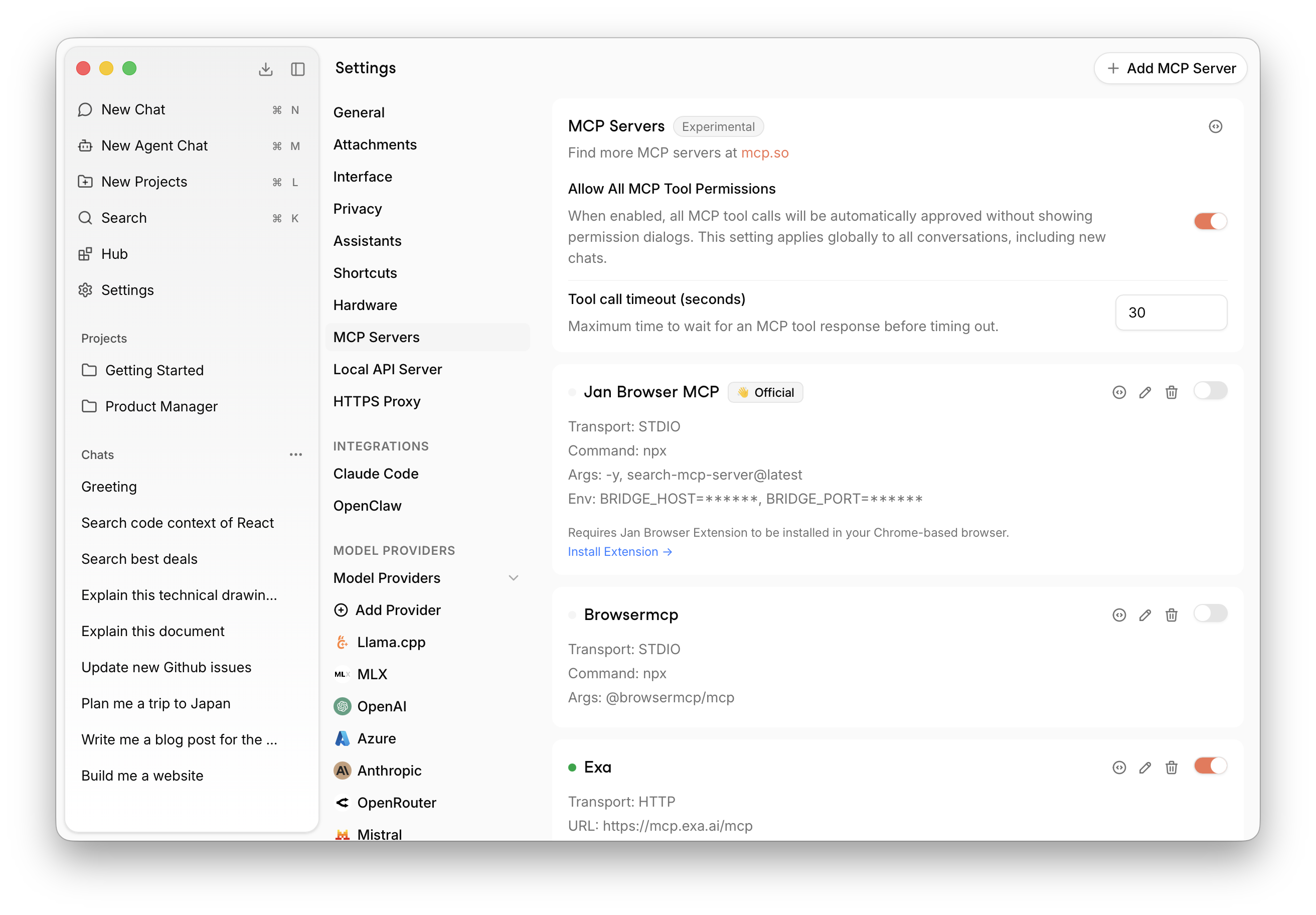
Settings
- Allow All MCP Tool Permissions — When enabled, all MCP tool calls are automatically approved without showing permission dialogs. Applies globally to all conversations.
- Tool call timeout — Maximum time (in seconds) to wait for an MCP tool response before timing out. Default is 30 seconds.
- Smart MCP tool routing — When enabled, Jan narrows which MCP servers are queried for tools on each turn when you have more than a small number of connected servers, reducing context size. You can optionally use a dedicated lightweight model for that routing step.
- Routing model — Single picker for provider + model; only lightweight models are listed. Requires smart routing and “Use a dedicated model for routing” to be on.
For developers tuning routing behavior (latency, fallbacks, token usage), see MCP routing.
Add an MCP Server
Open Settings
Go to Settings → MCP Servers.
Add server
Click + Add MCP Server in the top right corner.
Configure
Enter the server details:
- Transport:
STDIO(local process),HTTP(Streamable HTTP), orSSE(Server-Sent Events) - Command / URL: the command to run or the server endpoint
- Args: any arguments to pass
- Env: environment variables (e.g. API keys)
Enable
Toggle the server on. It will appear in the list with a green indicator when active.
Authentication
Each remote (HTTP / SSE) server shows an Auth line with its current state and the actions
that state allows.
- Sign in runs OAuth against the server: Jan discovers the provider's metadata, registers itself dynamically, and completes the authorization-code flow with PKCE against a loopback redirect. Your browser opens automatically; if it does not, use the Open the sign-in page link that appears while the flow is pending. The wait times out after five minutes.
- Clear authentication forgets the stored tokens and disconnects the server, since the live connection still holds the old token. The server stays configured, so signing back in brings it up again.
A server that fails to connect purely for want of a sign-in says so, instead of showing a transport error - Jan asks the server whether it advertises OAuth rather than guessing from the failure.
Tokens are stored in mcp_oauth.json in the Jan data folder, next to mcp_config.json and never
inside it, with owner-only permissions. They are refreshed automatically shortly before they expire
when the provider issued a refresh token. Changing a server's URL invalidates its tokens rather than
sending credentials issued for a different endpoint, and removing a server clears them too.
If you set an Authorization header on a server yourself, that credential is used as-is: OAuth is
never attempted and never reported as missing, because wrapping it would put two credentials on one
request.
Find more MCP servers at mcp.so (opens in a new tab).